Why Browser-Based File Conversion is the Safest Way to Manage Your Data
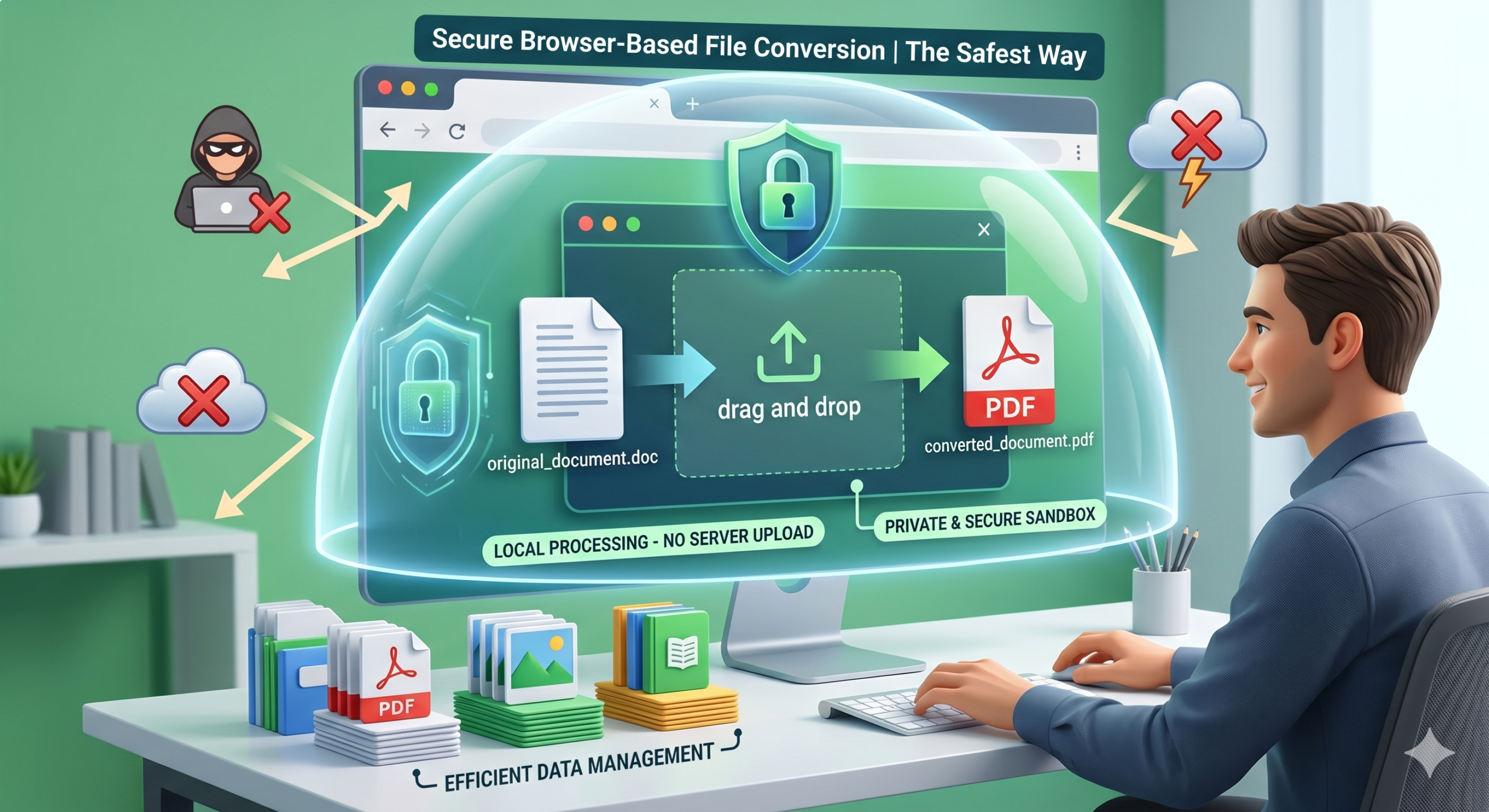
Browser-based file conversion is the safest method for handling sensitive data because it keeps all files on the local device. Unlike traditional online converters that require uploading documents to a remote server, browser-based tools use client-side processing to perform the conversion within the computer’s own memory. This ensures that personal information never travels across the internet or sits on a third-party database, effectively eliminating the risk of data breaches or unauthorized access during the conversion process.
The shift toward local processing provides a secure alternative for privacy-conscious users who need to convert files without compromising their security. By leveraging the power of modern web browsers, users gain the convenience of an online tool with the privacy of offline software. This article examines the technical advantages of browser-based processing and explains why it is the superior choice for remote workers, students, and anyone handling private documents.
The Difference Between Server Side and Client Side Processing
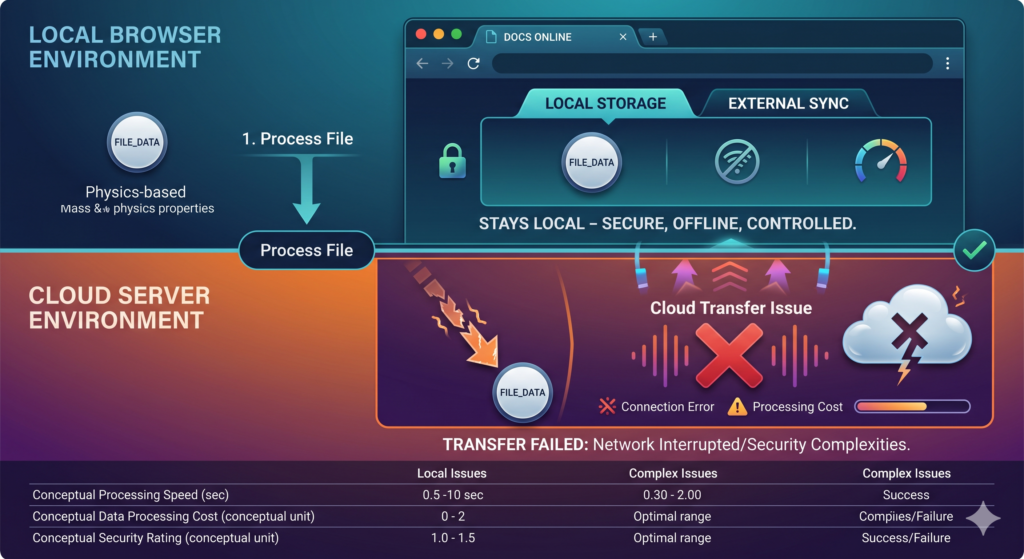
Understanding the security of a file converter requires looking at where the actual work happens. Most free tools use server-side processing. When a user clicks convert, the file travels from their computer to a company’s server. The server processes the file and then sends a download link back. This method creates multiple points of failure. Data can be intercepted during the upload, or the server itself could be compromised.
Client-side processing works differently. When a user visits a browser-based converter like X2X Converter, the website sends a small piece of code to the browser. This code acts like a tiny application that runs locally. When a file is selected, the browser uses its own resources to change the file format. The file never leaves the user’s hard drive.
A study by the Electronic Frontier Foundation emphasizes that minimizing data transit is a fundamental principle of digital privacy. By keeping data local, users maintain full control over their information throughout the entire workflow.
Benefits of Local Processing
- No Data Retention: Since the files are never uploaded, the service provider cannot store, analyze, or sell the data.
- Faster for Small Files: There is no waiting for an upload or download to finish. The conversion happens as fast as the local hardware can process it.
- Works Without a Strong Connection: Once the web page is loaded, the conversion can often happen even if the internet connection drops, because the logic is already in the browser.
Security Risks of Traditional Upload Converters
Traditional online converters often seem convenient because they are free. However, these “free” services frequently involve hidden costs related to data privacy. Beyond the technical risks of interception, the long-term management of your uploaded data remains a concern.
Many services have terms of use that allow them to keep files for a set period. Some might even use the content of these files to train artificial intelligence models or improve their internal algorithms. For a professional handling a client’s intellectual property or a home user managing personal records, this exposure is a significant liability. According to the IBM Cost of a Data Breach Report, the financial impact of lost data continues to rise, making preventative measures like local processing a financial necessity.
Hidden Data in Files
Files often contain metadata, which includes the creator’s name, location, and the software used. When uploading a file, this metadata is also shared. A browser-based tool ensures this extra information stays private.
Bonus Tip: When converting images to PDF for official use, check if the tool allows for the removal of EXIF data. Local conversion ensures that sensitive information, such as GPS coordinates from a photo taken at home, is not accidentally shared with a recipient.
Comparing Conversion Methods
The following table highlights the differences between the two main types of online conversion tools.
| Feature | Server-Side Converters | Browser-Based (Client-Side) |
|---|---|---|
| File Path | Uploaded to a remote server | Stays on your local device |
| Data Privacy | High risk of third-party access | Zero risk of external access |
| Potential for Breaches | Vulnerable to server hacks | Only as vulnerable as your PC |
| Ownership | You lose control once uploaded | You maintain 100% control |
| Performance | Limited by internet upload speed | Limited by your CPU and RAM |
| Log Records | Likely kept by the provider | No server logs of your content |
Practical Use Cases for Secure Conversion
There are specific situations where using a server-side converter is unacceptably risky. Protecting identity and financial history should be a top priority for every internet user.
Handling Tax and Financial Documents
Converting a bank statement or a tax form from an image to a PDF is a common task. These documents contain Social Security numbers, addresses, and income details. If these files are uploaded to a server that is later compromised, the user faces a high risk of identity theft. A browser-based converter allows these files to be changed in a secure environment.
Managing Medical Records
From individuals submitting insurance documents to remote workers managing health clearances, this information is highly sensitive. Using a tool that processes data locally ensures that private health information remains confidential and compliant with basic privacy standards without involving third-party servers.
Corporate and Intellectual Property
Employees working from home must protect company secrets. Uploading a draft of a new product or a confidential contract to a random website could violate employment agreements and lead to data leaks. Local conversion provides the same utility without the compliance risk.
Things to Consider Before Selecting a Tool
While browser-based conversion is the safest route, users should still evaluate the tool they choose. Not all tools are created equal.
- Browser Performance: Since the browser does the heavy lifting, ensure your computer has enough memory (RAM) available. Closing extra tabs can help when you are converting a large file.
- File Size Limits: Some browsers may struggle with extremely large files, such as high-resolution videos. For most documents and images, this is rarely an issue.
- No Account Requirements: A truly private tool should not require an email address or login. If a site asks for your identity, it is collecting data, even if the conversion logic is local.
- Open Standards: Look for tools that use well-known libraries like WebAssembly or JavaScript. These standard technologies allow for high-speed processing directly within the browser.
Bonus Tip: To maximize security, use your browser’s private or incognito mode when converting sensitive files. This prevents the browser from keeping a record of the file name in your history and ensures that third-party extensions cannot monitor your activity.
Common Questions About Local Conversion
Is browser-based conversion really as fast?
For most documents like PDFs, Word files, and images, it is often faster. You do not have to wait for the file to upload to a server or wait in a queue for a remote computer to become available. The processing starts as soon as you select the file.
Does the file size stay the same?
Yes, the conversion logic is identical to professional software. The output quality and file size are determined by the settings you choose, rather than where the processing happens.
Can I use these tools on a phone?
Most modern smartphones have browsers capable of running client-side conversion. As long as the device has an updated version of Chrome, Safari, or Firefox, the security benefits remain the same.
Effective Data Management Questions
How can I verify if a converter is actually processing files locally?
A simple way to check is to load the page and then disconnect your internet. If the conversion still works without an active connection, the tool is processing data on your device. Most server-side tools will fail immediately without an internet connection.
Is there a limit to how many files I can convert?
Since the tool uses your own hardware, there are usually no artificial limits placed by a server. You can convert as many files as your computer can handle without worrying about hitting a daily upload cap.
Are browser-based tools updated as often as cloud tools?
Yes, updates happen automatically every time the page is refreshed. Developers can push new features or security patches directly to the web application, ensuring you always use the latest version of the conversion code.
Do I need to install any software?
No, the primary advantage is that no installation is required. This is especially helpful for individuals using work computers where they do not have administrative rights to install new programs.
Summary of Safe Conversion Practices
Securing data requires a proactive approach to how files are handled online. Traditional upload-based converters introduce unnecessary risks by moving private information to external servers. Browser-based conversion offers a reliable solution by keeping the entire process on the user’s machine. This method protects against data breaches, prevents the logging of sensitive information, and allows for faster processing of common file types.
When managing documents like tax forms, medical records, or corporate files, using a tool that prioritizes local processing is the most effective way to maintain privacy. Data security is not just about passwords; it is about where your data travels. Choosing to keep your files local ensures that your information remains under your control.