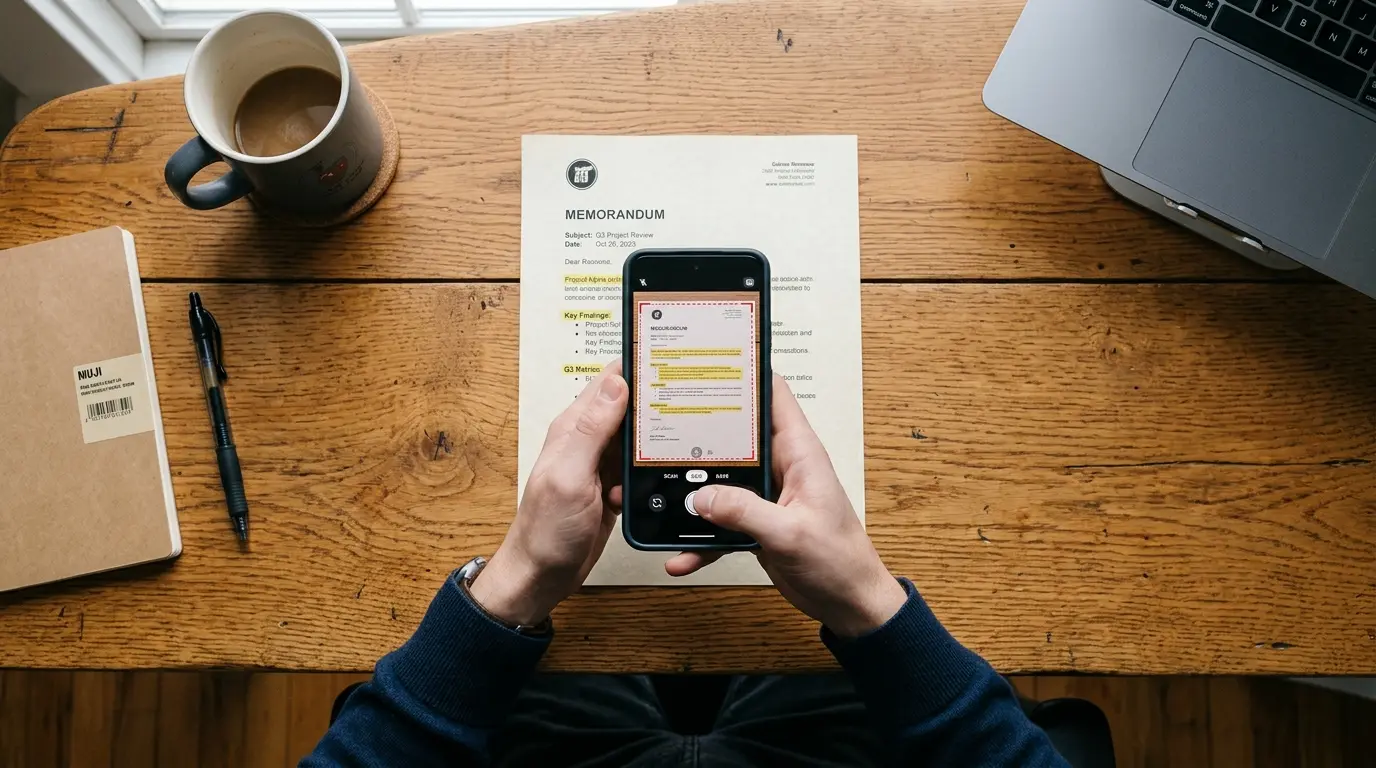
To extract text from image files, upload the picture to an online OCR tool, use Live Text on iPhone, or use Google Lens on Android. The software reads the letters in the photo and turns them into editable text you can copy, search and paste. A sharp, well-lit image helps you extract text from image files with the most accurate result.
Introduction
I have lost count of how many times someone has sent me a screenshot of a document and asked me to “just type it out.” A price list from a supplier. A page from a textbook. A receipt that needed to go into a spreadsheet. When I can’t extract text from image files, retyping it by hand takes ages, and I always make at least one typo.
The good news is that you almost never need to retype anything anymore. You can extract text from image files with tools that are already on your phone or computer, or with a free browser tool in a few seconds. When I need a quick result, I use the free image to text converter on X2X Converter, because it runs in the browser and needs no account.
In this post, I’ll show you six methods that work in 2026, explain how tools extract text from images behind the scenes, and share the habits that make the difference between clean text and a mess of random characters. If you are digitizing a whole stack of paper, you may also want to turn printed notes into editable documents as part of a bigger system.
What Does It Mean to Extract Text From an Image?
To extract text from image files means turning the letters shown in a photo, screenshot or scan into real, selectable characters. Before extraction, the words are only colored pixels. After extraction, you can copy them, edit them, search them and paste them into any app.
The technology behind this is called optical character recognition, or OCR. Optical character recognition is software that detects text in an image and converts each shape it finds into a matching letter, number or symbol. You will also see it called text recognition or text extraction. They all describe the same job.
Here is a simple way I explain how we extract text from image files to clients. A photo of a menu is a picture of words. Your phone can show it, but it can’t read it. OCR is the step that reads it, so the picture becomes text you can work with.
How OCR Works, Step by Step
Most modern tools follow the same basic process when they extract text from images:
- Clean up the image. The tool straightens the page, adjusts contrast and removes noise so the letters stand out from the background.
- Find the text areas. It separates text from photos, lines and empty space, then breaks the text into lines and words.
- Recognize the characters. A trained model compares each shape against patterns it has learned and picks the most likely letter.
- Check the result. Many tools use language models and dictionaries to fix likely mistakes, such as reading “0” where “O” makes more sense.
- Output the text. You get plain text, a formatted document or a searchable PDF, depending on the tool.
When older OCR engines tried to extract text from images, they matched letters against fixed character templates. Newer engines use neural networks that read whole lines at once, which is why accuracy on photos and messy layouts has improved so much in the last few years.
Method 1: How to Extract Text From Image Online (Free)
The fastest way to extract text from image files on any device is a browser-based OCR tool. You upload the picture, the tool reads it, and you copy the result. There is nothing to install, and it works the same on a laptop, a tablet or a phone.
Here is the routine I follow to extract text from image files with the X2X Converter Image to Text tool:
- Open the tool in any modern browser.
- Upload your image. Drag and drop a JPG, PNG or screenshot into the upload area, or tap to pick a file from your gallery.
- Start the conversion. The tool runs optical character recognition on the picture.
- Review the output. Read through the text once. Check names, numbers and email addresses, because those are where small errors hide.
- Copy or save the text. Paste it into an email, a document, a spreadsheet or a notes app.
I like to extract text from image files online for one-off jobs, like pulling a quote from a screenshot or copying a list of product codes from a photo. It’s also handy on a shared or work computer where you can’t install software.
One thing to know: plain text extraction drops the original layout. If you need the columns, headings and tables to stay in place, convert image to Word instead. That gives you an editable document that keeps more of the page structure, which saves a lot of cleanup on reports and forms.
Method 2: Copy Text From Image on iPhone With Live Text
If you have an iPhone, you already have a built-in way to copy text from image files and extract text from images in your gallery. Apple calls it Live Text, and it works in the Photos app, the Camera app, Safari and screenshots.
According to Apple’s support page on Live Text on iPhone, you need an iPhone XS, iPhone XR or later running iOS 15 or later. Live Text in videos needs iOS 16 or later.
To use it:
- Open the Photos app and pick the photo with the text.
- Touch and hold a word, then drag the grab points to select what you want.
- Tap Copy, or tap Select All to grab every word in the photo.
- Paste the text into Notes, Mail, Messages or any other app.
You can also tap the Live Text button in the lower-right corner of the photo to highlight all the text at once. If you don’t see it, go to Settings > General > Language & Region and turn on Live Text.
In my experience, Live Text is the quickest way to extract text from image files for receipts, signs, Wi-Fi passwords and business cards. It struggles more with long, dense pages, where a dedicated OCR tool gives cleaner paragraphs.
Method 3: Extract Text From Image on Android With Google Lens
On Android, Google Lens is the easiest way to extract text from image files. It comes built into most Android phones through the Google app, the camera and Google Photos.
- Open Google Photos and select the picture, or open the Google Lens app.
- Tap the Lens icon, then tap Text.
- Select the words you need, or choose Select all.
- Tap Copy text and paste it wherever you need it.
To extract text from images without saving them first, Google Lens can also point your camera at a printed page and read it live, which is useful for menus, notices and handouts. I use it most for short pieces of text. For long documents, I still prefer to scan the page properly first, then run it through an OCR tool on my computer.
Method 4: Extract Text From Image on Windows
Windows 11 has text extraction built into the Snipping Tool. Take a screenshot with the Snipping Tool, click the Text actions button in the toolbar, and the tool highlights the text it finds. You can then copy all of it or select just one part, which makes it simple to extract text from images on a PC.
This is my favorite way to extract text from image captures of an error message, a video frame or a locked PDF on a Windows laptop. It’s quick, and the text never leaves your computer.
Method 5: Copy Text From Pictures in OneNote
Microsoft OneNote has had OCR built in for years to extract text from images, and it works well for scanned pages and business cards. Microsoft’s help page explains how to copy text from pictures in OneNote: you right-click the picture, choose Copy Text from Picture, and paste the result.
If you insert a multi-page printout, OneNote lets you copy text from one page or from all pages at once. Microsoft also notes that complex images can take a while to process, sometimes up to 24 to 48 hours, and that the quality of the image decides how well the text is recognized. I always skim the pasted text before I trust it.
On a Mac, Live Text also works in Photos and Preview from macOS Monterey onward, so you can extract text from image files the same way you would on an iPhone.
Method 6: Convert Image to Text With Google Docs
Google Docs is a handy free way to extract text from image files if you already use Google Drive. Upload the image to Drive, right-click it, and choose Open with > Google Docs. Docs creates a new document with the picture at the top and the recognized text below it.
When you extract text from images this way, the text comes out unformatted, and complex layouts can get scrambled. Still, for a clean page of printed text, it’s a solid choice that saves the result straight into your Drive.
How to Extract Text From Scanned Document Files and PDFs
A scanned document is just an image saved inside a PDF or image file. That’s why you can’t select the words in many scanned PDFs, even though you can see them. To extract text from scanned document files, you first need to run OCR on the page images.
Here is the workflow I use:
- Check if the PDF is already searchable. Try selecting a word. If you can highlight it, the text is already there and you can copy it directly.
- If not, turn each page into an image. You can convert PDF pages to JPG images so any OCR tool can read them.
- Run OCR on each page. Use an image to text converter for plain text, or an Image to Word tool if you want to keep the layout.
- Proofread the result. After you extract text from image pages, pay extra attention to tables, footnotes and numbers.
When you need to extract text from images in large batches of scans, a desktop or cloud OCR tool that handles multi-page files will save you time. For a few pages, the online route is usually faster than installing anything.
How to Convert Scanned Notes to Text, Including Handwriting
Printed pages are the easiest place to extract text from images. Handwriting is harder, because every person writes differently and letters often join together.
That said, modern engines can convert scanned notes to text much better than they could a few years ago. Neat, printed-style handwriting on lined paper usually comes out well. Fast cursive, faint pencil and notes squeezed into margins are where results fall apart.
When I need to extract text from image scans of handwritten notes, I follow three rules:
- Write or photograph with dark ink on plain white or lightly lined paper.
- Shoot from directly above in good light, with the whole page in the frame.
- Test one page first before scanning a whole notebook.
If a tool gets more than a few words wrong on that test page, I try a different method rather than spend an hour fixing the output.
Multilingual Text Extraction: What Languages Are Supported?
Multilingual text extraction means reading text in languages other than English, and sometimes more than one language on the same page. How well tools extract text from image files in other languages varies a lot, so it’s worth checking before you start.
Microsoft’s documentation on optical character recognition in Azure AI Vision gives a useful picture of where the technology stands. It lists printed text support for English, French, German, Italian, Portuguese, Spanish, Chinese, Japanese, Korean, Russian, Arabic, Hindi and other languages that use Latin, Cyrillic, Arabic and Devanagari scripts. Handwritten text support is narrower: English, Simplified Chinese, French, German, Italian, Japanese, Korean, Portuguese and Spanish.
My practical advice: before you extract text from image files that mix two languages, or that use a script like Arabic or Urdu, test a short sample first. Some tools also let you choose the language before conversion, and picking the right one noticeably improves accuracy.
Which Method Should You Use? A Quick Comparison
The best way to extract text from image files depends on where your image is and what you need to do with the text. Here is how I choose:
| Method | Works On | Best For | Keeps Layout | Cost |
|---|---|---|---|---|
| Online OCR tool | Any browser | Quick one-off jobs, any device | No (use Image to Word for layout) | Free |
| Live Text | iPhone, iPad, Mac | Receipts, signs, screenshots | No | Free, built in |
| Google Lens | Android, iPhone | Short text, live camera reading | No | Free |
| Snipping Tool | Windows 11 | Screenshots, error messages | No | Free, built in |
| OneNote | Windows, Mac | Scanned pages, business cards | No | Free app |
| Google Docs | Any browser with Drive | Clean printed pages | Partly | Free |
If you only remember one thing from this table: use your phone’s built-in tool for small bits of text, and use a dedicated converter when the page is long or the layout matters.
Tips to Get More Accurate Results
When you extract text from images, the quality of your image decides the quality of your text. Every OCR tool I’ve used, from free phone features to paid software, gives better results with a better picture. These habits make the biggest difference:
- Use good, even light. Daylight from a window beats a phone flash, which creates glare and harsh shadows.
- Shoot straight on. Hold the camera parallel to the page. Angled shots bend the lines and confuse the software.
- Fill the frame with the text. Crop out desks, hands and backgrounds before you upload.
- Keep the resolution high. Microsoft’s documentation states a minimum text height of 12 pixels in a 1024 x 768 image, which is roughly 8-point text scanned at 150 DPI. Small text in a low-resolution photo is the most common reason I see for garbled output.
- Avoid compressed copies. Images sent through chat apps are often shrunk, which makes it harder to extract text from images accurately. Use the original file from your camera roll or scanner.
- Increase contrast on faded pages. A quick contrast boost in your photo editor helps on old or yellowed paper.
- Choose the right language if the tool gives you the option.
Common Mistakes to Avoid
Most bad results when people extract text from image files come from a few avoidable mistakes:
- Trusting the output without reading it. OCR can swap “1” and “l” or “5” and “S.” Always check numbers, prices, dates and names.
- Using a screenshot of a screenshot. Each copy loses detail. Go back to the original image.
- Expecting perfect tables from plain text tools. Plain text drops columns. Use an Image to Word converter when you extract text from image files with tables or forms.
- Uploading sensitive documents without thinking. Check how a tool handles your files before uploading IDs, contracts or medical records.
- Photographing curved pages. Pages near a book’s spine bend the text. Press the book flat or use a scanner app that corrects the curve.
Why Searchable Text Matters
Searchable text is what you get when you extract text from image files: text that a computer can find, index and read, as opposed to words that are only part of a picture. Once you extract text from images, you can search a folder of scans for one word, paste figures into a spreadsheet and translate a page in seconds.
It also matters for accessibility. Screen readers can’t read words that only exist as pixels. The WCAG guidance on images of text from the W3C asks authors to use real text instead of pictures of text wherever possible, and it lists performing OCR on a scanned PDF as one of the techniques that help meet that goal. If you publish scanned documents on a website, adding real text makes them usable for far more people.
Options for Developers and Bulk Work
If you need to extract text from image files in bulk or build OCR into an app, look at an engine you can run yourself. The open-source Tesseract OCR engine is the best-known example. Its README states that it can recognize more than 100 languages out of the box and reads image formats including PNG, JPEG and TIFF.
Tesseract can output plain text, hOCR (HTML), PDF, TSV, ALTO and PAGE formats. It was first developed at Hewlett-Packard between 1985 and 1994, open-sourced in 2005 and developed by Google from 2006 until 2017. The project’s own notes say that better input images usually lead to better results, which matches everything I’ve seen in practice.
Tesseract can extract text from images at scale, but it has no graphical interface, so it suits developers more than everyday users. For most people who want to extract text from image files, a browser tool or a built-in phone feature is the faster path.
Is It Safe to Upload Images to an OCR Tool?
It depends on the tool. Some converters process files in your browser, while others upload them to a server. Before you extract text from image files that hold anything sensitive, read the privacy policy and check how long files are stored.
My personal rule is simple. For public text like menus, signs and printed articles, any reputable online tool is fine. For passports, bank statements, contracts and medical records, I use a built-in device feature like Live Text or the Snipping Tool, so the image stays on my own device.
Key Takeaways
- You can extract text from image files for free with online OCR tools, iPhone Live Text, Google Lens, the Windows Snipping Tool, OneNote or Google Docs.
- Optical character recognition (OCR), also called text recognition, is the technology that turns pixels into editable, searchable text.
- When you extract text from images, image quality matters more than the tool. Use sharp, well-lit, straight-on photos with large enough text.
- Plain text extraction drops the layout. Use an Image to Word converter when tables and formatting matter.
- Handwriting and less common scripts are harder, so when you extract text from image scans of them, test one sample page first.
- Always proofread numbers, names and dates before you use the extracted text.
- Keep sensitive documents on your own device when you can.
Conclusion
Once you know how to extract text from image files, retyping text from a picture is one job you can stop doing today. Whether you’re on an iPhone, an Android phone, a Windows laptop or a borrowed computer, there is a free way to extract text from image files in under a minute. Start with a sharp, well-lit photo, pick the method that fits your device, and always give the result a quick proofread.
When you have a page of extracted text and the original scans to share, you can also combine images into a PDF so everything stays in one tidy file.
Ready to extract text from images yourself? Open the free Image to Text tool on X2X Converter, upload your image and copy your text in seconds.