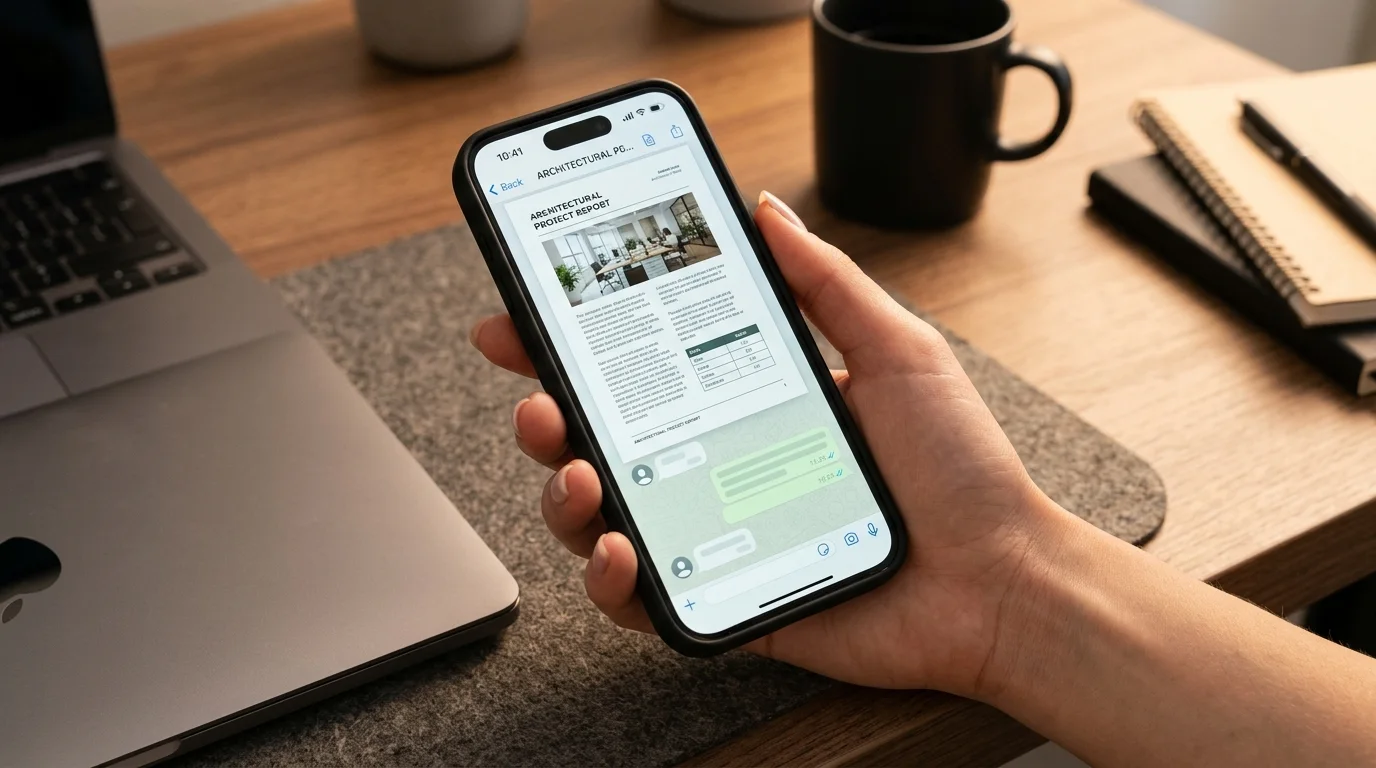
Save the picture from the chat to your phone, then turn it into a PDF with the built-in Print or Create PDF option, or with a browser-based image to PDF converter. A WhatsApp image to PDF conversion takes under a minute, and several pictures can go into a single file.
One form, six photos, and a request for a single file
A teacher sends class notes as six photos. A client sends a signed form as three. A landlord shares a lease one page at a time. WhatsApp handles all of that until someone asks you to submit a single file, and then you’re left with a camera roll full of loose pictures.
That’s the moment most people start looking for a WhatsApp image to PDF method. A PDF keeps pages in order, opens the same way on any device, and fits upload forms that reject image files. The steps resemble ordinary JPG to PDF conversion, with two extra wrinkles: WhatsApp compresses what it sends, and the photos sit inside a chat instead of a folder.
The phone-based options cost nothing, and a browser tool covers big batches. Every WhatsApp image to PDF job follows the same rhythm: save, convert, check, send.
What the conversion changes, and what it leaves alone
A WhatsApp image to PDF conversion takes one or more pictures from your chats and places each one on its own page of a PDF file. The conversion leaves the picture as it is and wraps it in a document, so any photo to PDF tool gives you a file that looks exactly as sharp, or as blurry, as the image you started with. It doesn’t add text you can search, and it can’t restore detail WhatsApp already removed. What changes is the file type, the page layout, and how easily the file can be shared, uploaded, and printed.
PDF is an open international standard, ISO 32000, and Adobe handed the PDF 1.7 specification to ISO in 2007. The standard’s stated aim is that people can exchange documents that look the same whatever software or device opens them. That’s the practical reason schools, banks, and government portals ask for PDFs.
Two file types dominate WhatsApp image to PDF work. Photos sent the normal way arrive as JPEG files, because WhatsApp re-encodes them in transit. Screenshots and files sent as documents usually keep their original format, often PNG. Both convert with the same tools.
Why a WhatsApp image to PDF file can look soft
WhatsApp shrinks pictures to save data. Send a photo in standard mode and the app resizes it and compresses it hard, so the copy your contact receives is far smaller than the original.
In one measurement test, a single 26-megapixel, 4.3 MB photo was sent through several phones and app versions. Standard mode kept roughly 1280 to 1600 pixels on the long side and 3 to 17% of the original bytes. HD mode gave a much better copy, but it was still a fresh JPEG with the camera data stripped, and the resolution cap ranged from 2560 to 5120 pixels depending on the device. Only sending the file as a document delivered it untouched.
Since the sender picks the mode, the quality of your WhatsApp image to PDF file is partly out of your hands, so ask before they send.
| Sending mode | What arrives | Best for |
| Standard photo | Small, heavily compressed JPEG | Casual sharing |
| HD photo | Larger re-encoded JPEG with a resolution cap | Photos and most everyday documents |
| Document | The original file, unchanged | Scans, contracts, anything you’ll print |
The document route is short. On iPhone, tap the plus button, choose Document, then Choose Photo or Video. On Android, tap the paperclip, choose Document, and pick the file. Sending the photo as a document delivers the whole file with no loss, and WhatsApp allows files up to 2 GB, so size rarely blocks it.
If people send you documents as photos often, ask them to switch the default to HD under Settings, Storage and data, Media upload quality. HD isn’t the original, but it’s a solid step up from standard.
A WhatsApp image to PDF file built from a standard-quality copy is fine for a photo of a page. Small print, signatures, and thin lines can turn soft, though. When the file matters, get the original.
How to convert WhatsApp images to PDF on a phone
Open the chat, tap the image, and save it so a copy lives in Photos, Gallery, or Files. A WhatsApp image to PDF conversion on a phone needs no extra app.
iPhone
Save the image with the share icon, choosing Save to Photos or Save to Files. Then pick one of two routes:
- Photos route. Open the image in Photos, tap Share, choose Print, and pinch outward on the preview with two fingers. The preview opens as a PDF. Tap Share again and choose Save to Files.
- Files route. Long-press the image in the Files app and choose Create PDF, which may sit under Quick Actions. For several images, tap More, choose Select, tap each image, then pick Create PDF.
The Files route suits batches, while the Photos route is the shortest WhatsApp image to PDF path for a single picture. If page order matters, rename the images 01, 02, 03 before you select them. WhatsApp converts iPhone’s HEIC photos to JPEG in transit, so the copy you save from a chat is already a JPEG.
Android
On Android, a WhatsApp image to PDF conversion runs through the same Print system that sends pages to a printer, except the destination is a file. Many Android phones save received photos to the gallery on their own. If yours doesn’t, save the image from the chat first. Open it in Google Photos or your gallery app, tap Share, then Print, and choose Save as PDF from the printer drop-down or the three-dot menu, depending on your version. Tap the PDF button, name the file, and choose a folder.
Phone makers rename menu items, so if Print is missing, look in the three-dot menu.
Building a WhatsApp image to PDF batch in a browser
An online tool is the fastest way to turn a batch of pictures into one WhatsApp image to PDF file. It works the same on iPhone, Android, Windows, and Mac because the work happens in the browser. When the phone’s own options feel clumsy for a batch, or you have more than three images, it’s the method to pick.
On a computer, open the chat in WhatsApp Web or the desktop app and download the images from the media viewer. On a phone, save them first. Then:
- Open any browser-based picture to PDF converter.
- Add all the images at once.
- If the tool shows thumbnails, drag them into page order. If it doesn’t, rename the files 01, 02, 03 before uploading so they load in sequence.
- Choose a page size and orientation if the tool offers them. A4 or Letter in portrait suits most documents.
- Convert, download, and scroll through every page before you send it.
Before you convert image to PDF files on an unfamiliar site, check a few things:
- It works without an account. A site that demands your email before handing over a file adds friction to a two-minute task, which is why people search for image to PDF no signup tools in the first place.
- It says how long uploads stay on its servers, or whether processing happens in your browser.
- It doesn’t stamp a watermark on your pages.
- It lets you control order and page size.
Uploading means your images travel to someone else’s server. That’s fine for a class handout and a poor choice for an ID card or a bank statement, which belong on the phone’s built-in route because it stays on your device. Page size and margins matter more when the PDF will be printed, so set them on purpose whenever you convert an image to PDF for paper.
Chat screenshots need extra care
A WhatsApp screenshot to PDF job differs from a photo job in three ways. Screenshots are PNG files, they’re often tall, and they show more than you meant to share.
Long chats. A conversation captured in several screenshots becomes several pages. Capture them oldest first and leave a little overlap so no message falls between two images. Crop out the battery icon and notifications if the PDF will leave the original chat.
Privacy. Phone numbers, profile photos, and other people’s messages all appear in the frame. Crop or cover anything the reader doesn’t need. When you cover text, use an opaque fill in your markup tool. A translucent highlighter can leave words readable.
Format. PNG is lossless, so a screenshot keeps crisp edges inside the PDF, and PNG to PDF conversion follows the same steps as JPG.
One caution. A WhatsApp image to PDF file made from screenshots is easy to produce and easy to dispute. If you need chat records for a legal dispute, an HR complaint, or a court filing, ask a lawyer or the receiving authority how evidence has to be preserved. Screenshots alone may not meet the requirements.
Sending several photos as one PDF
WhatsApp treats ten photos as ten separate files, and the recipient has to open each one. To send multiple WhatsApp photos as one PDF, merge them first and then send the PDF as a document.
Building the bundle takes five steps.
- Save all the images to one album or folder.
- Rename them 01, 02, 03 in the order the pages should appear.
- Build the PDF with Create PDF in Files on iPhone, or with an online converter on any device.
- Open the result and confirm the page count matches the image count, the order is right, and no page is sideways.
- In WhatsApp, tap the plus button on iPhone or the paperclip on Android, choose Document, and pick the PDF.
Because a finished WhatsApp image to PDF file travels as a document, WhatsApp delivers it without recompressing the pages. Give the file a name that means something to the recipient, like lease-agreement-signed-2026-09.pdf, not IMG-20260929-WA0004.pdf.
Keeping a WhatsApp image to PDF file small
Size problems in a WhatsApp image to PDF file come from the images, because the PDF wrapper adds very little. A PDF stores each page’s picture at whatever resolution it was given, so twenty 4 MB originals produce a file near 80 MB. Many email providers cap attachments at roughly 20 to 25 MB, and upload forms often set lower limits.
Images that reached you in standard WhatsApp quality are already small, going by the 3 to 17% figure above, so a WhatsApp image to PDF file built from them rarely causes trouble. The problem starts with originals sent as documents, or photos straight from your camera.
To compress image to PDF size, and keep a WhatsApp image to PDF file easy to email, work on the images before conversion:
- Resize. An A4 page at 150 dpi needs about 1240 by 1754 pixels. A 4000 pixel photo carries far more detail than the page can show at reading size, so 1600 to 2000 pixels on the long side is plenty.
- Go grayscale for text pages. Contracts and forms don’t need color.
- Lower JPEG quality a little. Around 75 to 80% usually keeps text readable. Zoom in to check.
- Convert once. Every recompression pass loses detail, so avoid converting, compressing, and converting again.
- Use a PDF compressor as a last step if the file still exceeds the limit, then confirm the text is readable at 100% zoom.
A worked example: the six-page rental form
Say a landlord sends a six-page form as six standard-mode photos, and the housing office that receives it wants one PDF under 5 MB. These numbers are rough and illustrative, but they show how a WhatsApp image to PDF job like this tends to go.
Each photo arrives at around 1500 pixels on the long side and a few hundred KB, so six pages total about 2 MB. That’s already inside the limit. The signature on page six looks soft, so you ask the landlord to resend that page as a document. You resize the 4 MB original to 1800 pixels, rename the six files 01 to 06, and convert them together. The finished WhatsApp image to PDF file lands near 2.5 MB.
Total time is about five minutes, and most of it is waiting for the resend. For bigger jobs, fix the weakest page at the source, then convert everything in one pass.
Situations where a PDF beats loose photos
Students hit this first. A classmate photographs the board, posts eight pictures in a group, and the instructor wants the notes as one document. A WhatsApp image to PDF file solves that in one pass.
Small businesses meet it with invoices, delivery proofs, and signed quotes that customers send by chat. One PDF per document is easier to file and search for than a dozen loose attachments, so a WhatsApp image to PDF routine saves the bookkeeper time.
Renters and job applicants hit the same wall on portals. Some upload forms cap the number of files at one or two, so a set of five photos has to become a single WhatsApp image to PDF file first.
Families use it for school forms, medical reports, and travel papers. Medical and identity documents are the sensitive ones, and for those a WhatsApp image to PDF conversion should happen on the phone, not on a random website.
Which method fits which job
Pick the WhatsApp image to PDF method by batch size and sensitivity.
| Method | Best for | Works offline | Main trade-off |
| iPhone Files or Print | One image or a small batch | Yes | Page order depends on how you select files |
| Android Print to PDF | One image at a time | Yes | Menu names differ by phone brand |
| Online converter | Batches from any device | No | Images leave your device, so read the privacy terms |
| Scanner app | Paper documents you photograph | Usually | Some add watermarks or paywalls |
Use the built-in route for any private WhatsApp image to PDF job. Use an online converter for batches of more than three images. Use the document-send trick whenever source quality matters. That combination covers nearly every WhatsApp image to PDF request you’ll run into.
Mistakes that spoil a WhatsApp image to PDF file
Converting before the download finishes. In chats with auto-download off, a blurred preview looks like an image but isn’t one. Tap it, wait for the full picture, then save.
Screenshotting the image instead of saving it. You get a lower-resolution copy with the status bar attached, and the WhatsApp image to PDF file inherits both flaws.
Wrong page order. WhatsApp shows images in the order they were sent, which may not be the order the pages should read. Check before you start the WhatsApp image to PDF conversion.
Skipping the final scroll. One rotated or missing page in a WhatsApp image to PDF file can get a whole submission rejected.
Uploading sensitive files to unknown sites. If a document carries an ID number, an account number, or medical details, keep the WhatsApp image to PDF work on your device.
For official submissions such as visa applications, court filings, or notarized paperwork, check the receiving body’s file rules first. Requirements vary, and a notary or lawyer can tell you what counts as acceptable.
Can a PDF made from photos be searched?
Not by default. A WhatsApp image to PDF file contains pictures of text, so a word search finds nothing and you can’t select the words. Screen readers can’t read those pages either.
Optical character recognition (OCR) can add a hidden text layer. Many PDF tools and some scanner apps offer it, and the accuracy depends on how sharp the image is and which language it’s in. If someone needs editable text, ask for the original digital file instead of a photo of it.
Key takeaways
- A WhatsApp image to PDF conversion wraps the image in a document and leaves its quality and text unchanged.
- WhatsApp compresses standard photos heavily. Ask the sender to use the Document option when quality matters.
- For a WhatsApp image to PDF conversion on iPhone, use Files (Create PDF) or Photos (Print, then Save to Files). Android users can use Print, then Save as PDF.
- An online picture to PDF converter is the quickest WhatsApp image to PDF route for big batches. Choose one that works without an account and states how long it keeps uploads.
- Rename images 01, 02, 03 before starting a WhatsApp image to PDF merge, and check the page count afterward.
- Shrink the images first if the PDF is too big, because the PDF wrapper adds very little.
- Keep IDs, bank records, and medical documents on your device. Get professional advice before turning chat evidence or official paperwork into a WhatsApp image to PDF file.
Conclusion
A reliable WhatsApp image to PDF workflow comes down to three moves: start from the best copy of the image, convert it with a tool that suits the job, and check the result before you send it. Built-in phone tools handle single images and private files, and a browser-based converter handles batches on any device.
When a stack of photos is too much for the phone’s own tools, an image to PDF tool in the browser can merge them in one pass. Send the finished file as a document so it reaches the recipient untouched.
Frequently asked questions
How do I convert a WhatsApp image to PDF on my phone?
Save the image from the chat to your gallery, then create the PDF. On iPhone, long-press the image in Files and tap Create PDF. On Android, open it in Google Photos, choose Share, then Print, then Save as PDF. Either WhatsApp image to PDF route takes under a minute and needs no extra app.
Can I do a WhatsApp image to PDF conversion without signing up?
Yes. The Print and Create PDF options built into iPhone and Android need no account. Many online converters also work without registration, but terms differ, so check before you upload.
How do I send multiple WhatsApp photos as one PDF?
Build one WhatsApp image to PDF file first, then send it. Put the images in page order, convert them together with Files or an online converter, check the page count, and attach the PDF through the Document option in WhatsApp. Sending it as a document avoids extra compression.
Does a WhatsApp image to PDF conversion reduce quality?
Most methods place the image in the PDF without recompressing it, though some tools compress by default. The bigger loss happens earlier, because WhatsApp compresses photos sent in standard mode. No PDF tool can bring that detail back, so ask for the original as a document when quality matters.
How do I convert a WhatsApp screenshot to PDF?
Treat it like any other WhatsApp image to PDF task. Save the screenshot, then use Files or Print on your phone, or an online converter. Crop out status bars and other people’s details first. For long chats, capture screenshots oldest to newest with a little overlap so no message goes missing.
How can I compress a WhatsApp image to PDF file?
Shrink the images before converting, since the PDF adds little on its own. Resize photos to about 1600 to 2000 pixels on the long side, lower JPEG quality to around 75%, and use grayscale for text pages. If the PDF is still too big, run it through a PDF compressor and check readability.
What is the best free tool for WhatsApp image to PDF work?
It depends on the job. For a single private image, the built-in phone tools are the best WhatsApp image to PDF option. An online picture to PDF converter suits batches from any device. Pick one that works without an account, doesn’t watermark pages, and states how long it keeps your uploads.
Why is my WhatsApp image to PDF result blurry?
WhatsApp shrank it before you saved it. In the AccioPix test, standard mode kept roughly 1280 to 1600 pixels on the long side. Ask the sender to resend the image as a document, or turn on HD, then convert it again.
Can I convert JPG to PDF and PNG to PDF the same way?
Yes. A WhatsApp image to PDF job works the same for JPG and PNG. PNG suits screenshots and keeps edges crisp, while JPG suits photos and gives smaller files. Most converters accept a mixed batch and put both formats into one PDF.
Is it safe to use an online tool for WhatsApp image to PDF conversion?
It depends on the content and the site. For casual photos the risk is low. For IDs, bank statements, or medical records, use your phone’s built-in offline method. If you do upload, look for HTTPS, a stated deletion period, and a privacy policy.