Introduction
Every day, tens of thousands of people sit with a folder of JPGs and a simple problem: they need one clean PDF instead of a pile of separate images. Maybe you are sending a scanned contract to a client, uploading photo proof to insurance, submitting a design mood board, or emailing a medical report. Whatever the reason, the need is the same. You want a reliable image to pdf converter online that is fast, free, respectful of your files, and easy enough to use on any device. I have tested more of these tools than I care to count, and the good news is that the best one is often the simplest one. In this guide, I walk you through everything you need to know to convert images to PDF like a professional, whether you work on a laptop, an iPhone, or an Android phone.
Let me start by being honest about the two big mistakes people make.The first is downloading heavy desktop software just to combine a few images. The second is trusting a random tool that slaps a watermark on every page or asks for your email before it lets you download. Neither is necessary. A good image to pdf converter should work in your browser, keep your images private, and give you a clean PDF in seconds.
Why Convert Images to a PDF at All?
Before we get into the how, let me cover the why. A PDF is a fixed-layout document that looks the same on every screen and every printer. This is a huge advantage over images, which can stretch, distort, or look different depending on where they are opened. Here are the situations where converting images to PDF genuinely helps.
- Sending multiple images as one file. Emailing ten separate JPGs is messy and some systems reject them. One PDF is one clean attachment.
- Preserving order and layout. When you combine images into a PDF, you control the order. A storyboard, a set of slides, or a photo sequence keeps its intended flow.
- Printing reliably. PDF is the universal print format. A scanned document or a batch of receipts prints consistently from a PDF.
- Protecting or sharing formally. Contracts, signatures, certificates, and forms are almost always exchanged as PDF, not as loose images.
- Keeping quality consistent. A PDF can embed high-resolution images so your scanned pages and photos stay sharp.
In short, PDF is the standard for anything that needs to look intentional and professional. That is why mastering a reliable image to pdf converter online pays off in almost every corner of work and life.
What to Look for in an Image to PDF Converter
Not every tool is worth your time. Over the years I have narrowed the essentials down to five things you should check before you trust a converter with your files.
1. Free with no hidden limits. A converter should do the job without a paywall appearing halfway through. Look for a tool that lets you combine multiple images into a single PDF at no cost.
2. No watermark. This is the dealbreaker for most people. A watermark makes your document look amateur and often forces you to upgrade to remove it. Choose an image to pdf converter no watermark option so the result is clean and professional.
3. No login or account required. Privacy matters. The best tools process your images in your own browser and never ask you to sign up. An image to pdf converter without login means your files stay yours and you are out the door in seconds.
4. Private, on-device processing. Some converters upload your images to a server, which you may not want for scans of sensitive documents. Tools that run in your browser keep everything local. This is a real advantage for privacy-conscious users.
5. Works everywhere. The same logic should hold whether you are on a desktop, an iPhone, or an Android device.
When I review a converter, I score it on these five points. If a tool fails on watermark or login, I do not recommend it, no matter how fancy the interface is. This is exactly the standard I used when evaluating the tools covered in this guide.
The Fastest Way: Convert Image to PDF Online Free
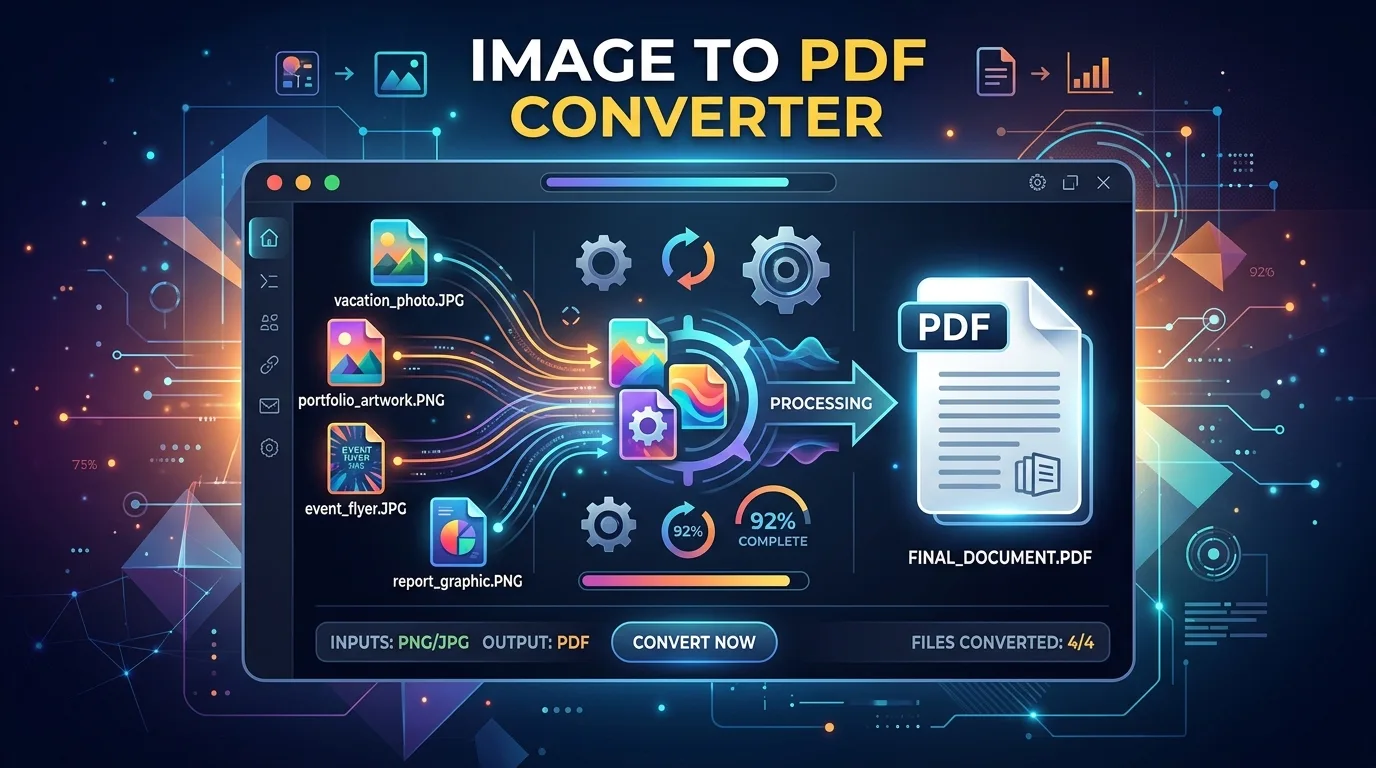
If you have a laptop or desktop and you want the quickest result, a browser-based tool is the way to go. No installs, no accounts, no watermarks. Here is the step-by-step workflow I use, using the X2X Converter Image to PDF tool as the example.
Step 1: Open the image to pdf converter online tool.
Head to the Image to PDF page on X2X Converter. There is nothing to download, so you can start immediately.
Step 2: Upload your images.
Click the upload area or drag and drop your images straight in. The tool accepts multiple files at once, which is the whole point. You can add JPG, PNG, and most common image formats in a single batch. If most of your files are specifically JPGs, our dedicated JPG to PDF converter walks through the exact same no-watermark, no-login workflow, tailored just for that format.
Step 3: Check the preview and order.
Before converting, the tool shows thumbnails of everything you uploaded. This is your chance to confirm the files are correct and in the right order. If you need to, rearrange so the sequence makes sense for your document.
Step 4: Convert to PDF.
Hit the Convert button. Because processing happens in your browser, the conversion is quick and your images do not need to be uploaded to an external server.
Step 5: Download and share.
Your finished PDF downloads right away. Save it, email it, or print it. The whole flow, from upload to download, typically takes well under a minute for a normal batch of images.
This is the definition of a stress-free workflow. No signup screen, no watermark to fight, no desktop install. If you want to convert image to pdf online free with the least friction possible, this is the route I recommend most often.
Convert Image to PDF Without a Watermark (and Without an Account)
Let me spend a little more time on the two features people search for most: no watermark and no login. I have seen too many users get to the download step and discover their free tool stamped a branding mark on every single page or refused to finish unless they created an account.
Here is what happens with a watermarked converter. You combine five photos, hit convert, and the tool places a small logo and a web address on the corner of each page. Now you have to either live with it, crop it out (which ruins the layout), or pay to remove it. None of those are good options.
The fix is simple. Use an image to pdf converter no watermark from the start. X2X Converter’s tool falls into this camp, and it also works as an image to pdf converter without login. You upload, convert, and download. There is no account wall and no branding on your output. For anyone handling scans, contracts, or client deliverables, that is the only acceptable standard.
Privacy is the second quiet benefit. Because the conversion runs client-side in your browser, your photos and scans are not uploaded to a third-party server. If you are converting sensitive documents, that local processing is a meaningful advantage you should not overlook.
Convert Image to PDF on iPhone
You do not always have a laptop nearby, and often your images live on your phone anyway. If you use an iPhone, you already have a built-in way to convert images to PDF, and I want to show you two options.
The built-in iPhone method (no extra app needed). Apple includes a native way to turn photos into a PDF using the Files app or the Share sheet.
- Open the Photos app and select the images you want to combine.
- Tap the Share button, then choose Print.
- On the print preview screen, pinch the thumbnails outward with two fingers. This zooms the preview into a full-page PDF view.
- Tap the Share icon again and select Save to Files.
- Your images are now saved as a single PDF in the Files app, ready to send or print.
This trick is free, requires no installs, and works surprisingly well. It is my default when I only have an iPhone on hand. If you need more control over order or want to convert image to pdf on iphone with a consistent workflow, you can also open the X2X Converter tool in Safari and use the same drag-and-drop approach, then save the result to Files.
Tips for better iPhone PDFs.
- Use the native Print-and-save method for quick, basic PDFs.
- For higher control, use a browser-based converter so you can reorder images before saving.
- Keep your photos oriented correctly before converting to avoid upside-down pages.
Convert Image to PDF on Android
Android offers similar flexibility, though the built-in path is a little less obvious than on iOS. Here are the practical ways I handle it.
Method 1: Use the share sheet with Google Drive. Google Drive is preinstalled on most Android devices and can create PDFs.
- Open an image in Google Photos or your file manager.
- Share it to Google Drive and upload it (repeat for each image you want to include).
- In Google Drive, select all the images, open the menu, and choose Print or Export as PDF.
- Save the combined PDF back to your device or Drive.
Method 2: Use a browser-based converter. Open the X2X Converter Image to PDF tool in Chrome on your Android phone. Select multiple images from your gallery and convert them in one go. Because the tool runs in the browser, the experience on Android is almost identical to desktop, which is handy if you need to combine many photos quickly.
Method 3: Dedicated mobile apps. If you convert images to PDF constantly, a dedicated image to pdf converter app can be worth installing. I talk about the trade-offs in the app section below.
My advice for Android users: start with the browser tool for speed and no installs, and reach for Google Drive when you want a native, offline-ish workflow.
Image to PDF Converter App vs. Online Tool
A common question is whether to use an image to pdf converter app or just an online tool. Both get the job done, but they suit different situations. Let me lay out the honest trade-offs.
| Factor | Online converter | Mobile app |
| Install needed | No | Yes |
| Works offline | Usually no | Often yes |
| Storage impact | None | Uses device space |
| Privacy model | Depends on tool | App-dependent |
| Cross-device | Any browser | One device/store |
| Updates & maintenance | Automatic | Requires app updates |
| Watermark risk | Varies by tool | Varies by app |
When I prefer an online converter. I use a browser-based image to pdf converter online when speed and zero installs matter, when I am on a borrowed or shared computer, or when I want the exact same workflow across desktop, iPhone, and Android. It is also the better choice when I want my images processed locally without uploading to an app’s servers.
When an app makes sense. I reach for an installed image to pdf converter app when I work offline a lot, for example on a plane, or when I convert documents daily and want a one-tap shortcut on my home screen. Apps can also keep a history of recent conversions, which some people find convenient.
The honest recommendation is that most people do not need a dedicated app. A good online converter covers 90% of use cases with less clutter and better privacy. Add an app only if you find yourself converting regularly in places without an internet connection.
Pro Tips for Clean, Professional PDFs
Getting a usable PDF is easy. Getting a great PDF takes a little craft. These are the habits I have picked up that make the difference.
- Order your images before converting. The order you upload is the order you get. Arrange scans and photos so the sequence reads correctly.
- Use the right image quality. For documents, export your scans at a sensible resolution. Very large images create huge PDFs, while very low resolution looks blurry when printed.
- Straighten and rotate first. Nothing looks more amateur than a sideways page. Rotate images inside the converter or before you upload them.
- Name your final file well. A clear filename like 2026-Q3-invoices.pdf beats Untitled-5.pdf every time.
- Keep it to one document when it makes sense. Combine related images into a single PDF and you will email one attachment instead of ten. Use a tool that lets you convert image to pdf online free without penalizing you for multiple files.
- Test print one page. If the PDF is for print, check a single page first to confirm orientation and margins.
Common Problems and How to Fix Them
Even with a good tool, you can hit a snag. Here are the issues I see most often and how I solve them.
My PDF pages are sideways. Rotate the source images before converting, or use a converter that lets you rotate each thumbnail. This is almost always an orientation problem, not a tool problem.
The PDF is too large to email. Reduce the resolution of the source images first, or convert fewer, higher-value pages. Some online tools let you compress output, but the simplest fix is smaller source files.
My images are out of order. Reorder your uploads. The final PDF follows the selection order, so confirm the sequence in the preview before converting.
The tool asks for a login or adds a watermark. Switch to an image to pdf converter without login and an image to pdf converter no watermark. You should never have to create an account or accept branding just to combine your own images.
I cannot find the downloaded file. Check your Downloads folder or the browser’s download bar. On mobile, the PDF usually lands in Files (iPhone) or Downloads (Android).
Security and Privacy: What You Should Know
Let me be direct about privacy, because it is the most underrated part of choosing a converter. When you upload an image to a random website, you do not always know where it goes or how long it is stored. That matters a lot when your images are scanned IDs, medical records, contracts, or anything personal.
The safest option is a converter that processes files in your own browser, a model called client-side conversion. With this approach, your images are never transmitted to a server for processing, so there is no copy for a third party to store, sell, or leak. This is the model the X2X Converter Image to PDF tool uses, and it is one of the main reasons I recommend it for sensitive documents.
A few practical rules I follow:
- Prefer tools with explicit privacy policies.
- Choose client-side converters for sensitive files.
- Never convert financial or identity documents on an unfamiliar site.
- Clear your browser history if you convert something sensitive on a shared computer.
X2X Converter: The Whole-Browser Toolkit
One of the reasons the X2X Image to PDF tool fits so naturally into a workflow is that it lives inside a broader toolkit. When your images become a PDF, you often need the next step too. That next step might be extracting text from a scanned document, resizing images before conversion, or turning a PDF back into JPGs. X2X Converter covers these with related tools, which makes the whole document process smoother.
- Image to PDF is the star of this post and the direct link you should bookmark.
- Image to Text (OCR) pulls text out of scanned or photographed documents when you need an editable version.
- Image Size Converter shrinks or resizes images before you combine them.
- PDF to JPG goes the other direction when you need individual images back out of a PDF.
- Image Merger is useful when you want to combine images into a single picture rather than a document.
Keeping these in one place avoids the messy habit of collecting bookmarks across ten different sites. You convert, and then you keep working in the same window.
Final Thoughts
Converting images to PDF does not need to be complicated, and it definitely should not cost you a watermark or an email address. Whether you are on a desktop, an iPhone, or an Android phone, the goal is the same: get a clean, professional, shareable PDF as quickly as possible.
My recommendation is simple. Start with a free, browser-based image to pdf converter online that runs in your browser, works without a watermark, and never asks you to log in. That combination covers the vast majority of real-world needs with the best privacy. From there, learn the native options on your phone so you are covered even without an internet connection.
Bookmark the X2X Converter Image to PDF page, remember the iPhone print-to-PDF trick, and keep the Android share-sheet approach in your back pocket. With these in your toolkit, you will never stress about a folder full of images again. You will convert them like a pro, every time.
Frequently Asked Questions
Is there a free image to PDF converter with no watermark?
Yes. X2X Converter’s Image to PDF tool lets you convert images to PDF online free with no watermark on your output. Browser-based tools like this one are the easiest way to avoid watermarks without paying.
Can I convert multiple images to one PDF?
Yes. The tool accepts multiple image uploads and combines them into a single PDF document, which you can then order and download as one file.
Do I need to create an account to convert images to PDF?
No. X2X Converter works as an image to pdf converter without login. You upload, convert, and download without signing up.
How do I convert image to PDF on iPhone?
Use the built-in method: select images in Photos, tap Share, choose Print, pinch the preview outward to expand it into a PDF view, then save to Files. You can also use a browser-based converter in Safari for more control.
How do I convert images to PDF on Android?
Share the images to Google Drive and export them as a PDF, or open a browser-based image to pdf converter on your Android device and upload multiple images from your gallery.
Is an image to PDF converter app better than an online tool?
It depends. Apps are useful offline and for frequent one-tap conversion. Online converters are better for no-install speed, cross-device use, and privacy, especially when processing happens in your browser.
Are my images private when I convert them online?
When using the X2X Converter tool, processing happens client-side in your browser, so your images are not uploaded to a server. Always check a tool’s privacy model before uploading sensitive documents.